Publishing
Once your app is complete and your Portico integration has been tested, you’ll need to provide a build for review. This can be done from within the Unity Editor.
⚠️ Important: Ensure all modules are correctly configured and fully tested before submission. Any changes made to module configurations after submission may require you to restart the publishing process.
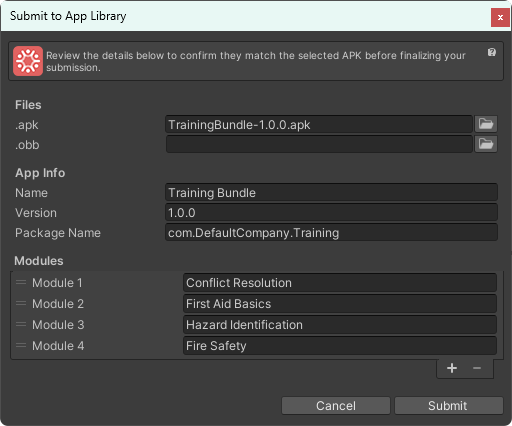
- In the Unity Editor, go to PorticoXR > Submit App
- Select your APK file
- (Optional) Select your OBB file
- Verify that all details in the form are correct
- Click Submit
Your app will be securely uploaded for review.
ℹ️ The submission process can also be initiated from the Portico Window context menu.
Modular apps undergo internal testing by the Portico Team to ensure proper MDM (Mobile Device Management) integration. Validation and approval may take 2-3 business days to complete.
For any questions or assistance, contact dev-support@porticoxr.com.
⌨️ Submission via Code
As of version 1.8.0 of the core package, you can submit your app via code, which is useful for integrating the submission process into your project’s build workflow.
Example method:
using PorticoXREditor.Project.AppLibrary;

private static async Task SubmitApp()
{
    var submission = new AppSubmission
    {
        Name = "Example App",
        Version = "1.0.0",
        BundleId = "com.example.app",
        ModuleNames = AppSubmission.GetModuleNames(), // Gets module names from the current project
        ApkPath = @"C:\Project\Build\Example.apk",
        ObbPath = @"C:\Project\Build\Example.main.obb"
    };

    var result = await submission.Submit();

    if (result.IsSuccess)
    {
        Debug.Log("App submitted successfully!");
    }
    else if (result.IsCanceled)
    {
        Debug.LogWarning("App submission was canceled.");
    }
    else
    {
        Debug.LogErrorFormat("App submission failed: {0}", result.Error);
    }
}
⚠️ To utilize
PorticoXREditor.Project.AppLibrary, you must add thePorticoXREditor.Coreassembly to your assembly definition under Assembly Definition References.