Launch on Device
When running your Portico application on a physical device, authentication is typically handled by the Portico App. However, during development, you can use the Launch on Device feature to bypass the need for scheduling sessions and running through the Portico App, allowing for faster iteration and testing.
🔧 Prerequisites
Before using the Launch on Device feature, ensure you have:
- Android Device/Headset: Connected via USB with USB Debugging enabled
- PorticoXR SDK: Successfully integrated into your Unity project
- Developer Authentication: Signed in through the Unity Editor
▶️ Launch
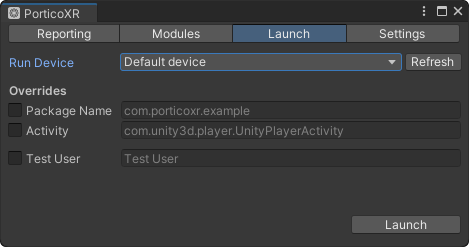
- In Unity, navigate to PorticoXR > Launch on Device…
- Select your target device from the list (if multiple devices are connected)
- Click Launch
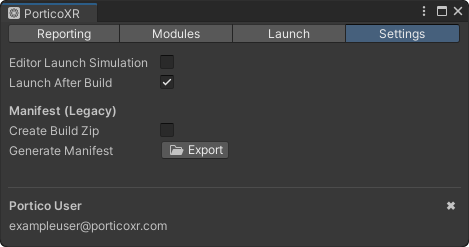
💡 You can also enable Launch After Build in the Settings tab to automatically launch your app on the target device when you use Unity’s Build and Run workflow. This setting is disabled by default.
Entering Play Mode in the Unity Editor simulates launching the experience through the Portico App and enables all Portico functionality, including module loading and reporting. You can disable this behavior from the Settings tab in the PorticoXR window by unchecking Editor Launch Simulation. Disabling this option affects only the Unity Editor and is intended for testing fallback behavior when your app is launched outside of the Portico App.