Configuring Modular Apps
Configuring Modular Apps
Modules allow you to configure distinct learning experiences within your application that will be identified as separate learning modules on the Portico LMS. When a user launches into one of these modules, the Portico Launcher App will pass this information to your app, so it can load straight into the specific module.
📚 Setting Up Modules
- Open the PorticoXR window from Window > PorticoXR
- Navigate to the Modules tab
- List unique names for your modules in the provided interface
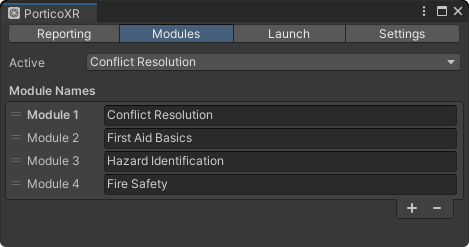
⌨️ Identifying the module being launched
When your app launches, you can check which module was selected using the Portico.ModuleName property. You should then implement code to direct your user to the appropriate sub-app/module.
Example Usage
using PorticoXR;

public class ModuleManager : MonoBehaviour
{
    private void Start()
    {
        // Route to appropriate sub-app based on loaded module name
        switch (Portico.ModuleName)
        {
            case "Conflict Resolution":
                LoadConflictResolution();
                break;
            case "First Aid Basics":
                LoadFirstAidBasics();
                break;
            case "Hazard Identification":
                LoadHazardIdentifcation();
                break;
            case "Fire Safety":
                LoadFireSafety();
                break;
            default:
                throw new ArgumentOutOfRangeException(nameof(Portico.ModuleName), Portico.ModuleName, $"Unhandled module name: '{Portico.ModuleName}'.");
        }
    }

    // ... Methods to load modules
}
🧪 Testing Modules
After configuring your modules, you can test them directly in the editor or select a specific module from the dropdown. You may also choose to deploy and test the module using the optional Launch on Device feature.