Actions
Actions are used to track smaller events in your app that do not require a result. Use actions to record user interactions or other notable events that occur within an activity. These actions will appear in your reports, associated with the relevant activity.
📝 Reporting an Action
To send an action, you can send a statement using the reporting API. Here is a basic example in C#:
using PorticoXR.Reporting;
using PorticoXR.Reporting.Statements;

// 'activity' is the activity you want to report against
var statement = Statement.CreateAction(activity, Verb.Grabbed, "the Pan");
PorticoReporting.Send(statement);activity: The activity instance the action relates to.Verb.Grabbed: The verb describing the action."the Pan": The subject or object of the action.
⚡ Using Unity Components
If you prefer to work with Unity components, the ActionHelper can help simplify action reporting.
- Add the ActionHelper component to a GameObject.
- Link the activity you want to report against in the component’s inspector.
- Select the verb that best describes the action (e.g., Grabbed, Inspected, etc.).
- Set the subject (the object or entity involved in the action).
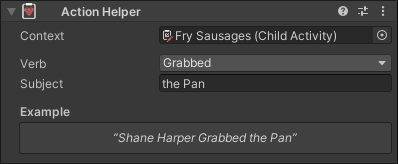
You can find this component under PorticoXR > Reporting > Action Helper in the Unity component menu.